
Now it's time again for what might end up being a monthly update on the Templify progress.
I've been working on implementing the organizations and teams functionality and architecture for Templify, which takes a lot of time due to a couple of factors which relate to how I choose to work. In order to keep myself motivated, I usually work on what I want to work on and not so much what is required to complete the Trello board (I did have a Trello board at some point). If I want to spend four hours nitpicking on a specific design or user flow, then that's what I will do.
On to the features I've been working on!
Update summary
-
App structure
- User organizations and roles
- User teams and roles
-
Code refactoring and improvements
- React Server Actions for data fetching and mutations
- Restructuring data in React Contexts related to data caching
-
Various UI improvements
- Colors (both in dark mode and light mode)
- Info labels
- Team quick-selector
- ...and more!
User organizations
- Status: WIP
- CRUD: Create and read-only for now
A user can now create an organization with ease. You just click the Create organization button, enter a name for your organization in the form modal, and save your changes. I don't want to pester users with billing info unless it's needed, which it is not until they invite members to their organization.
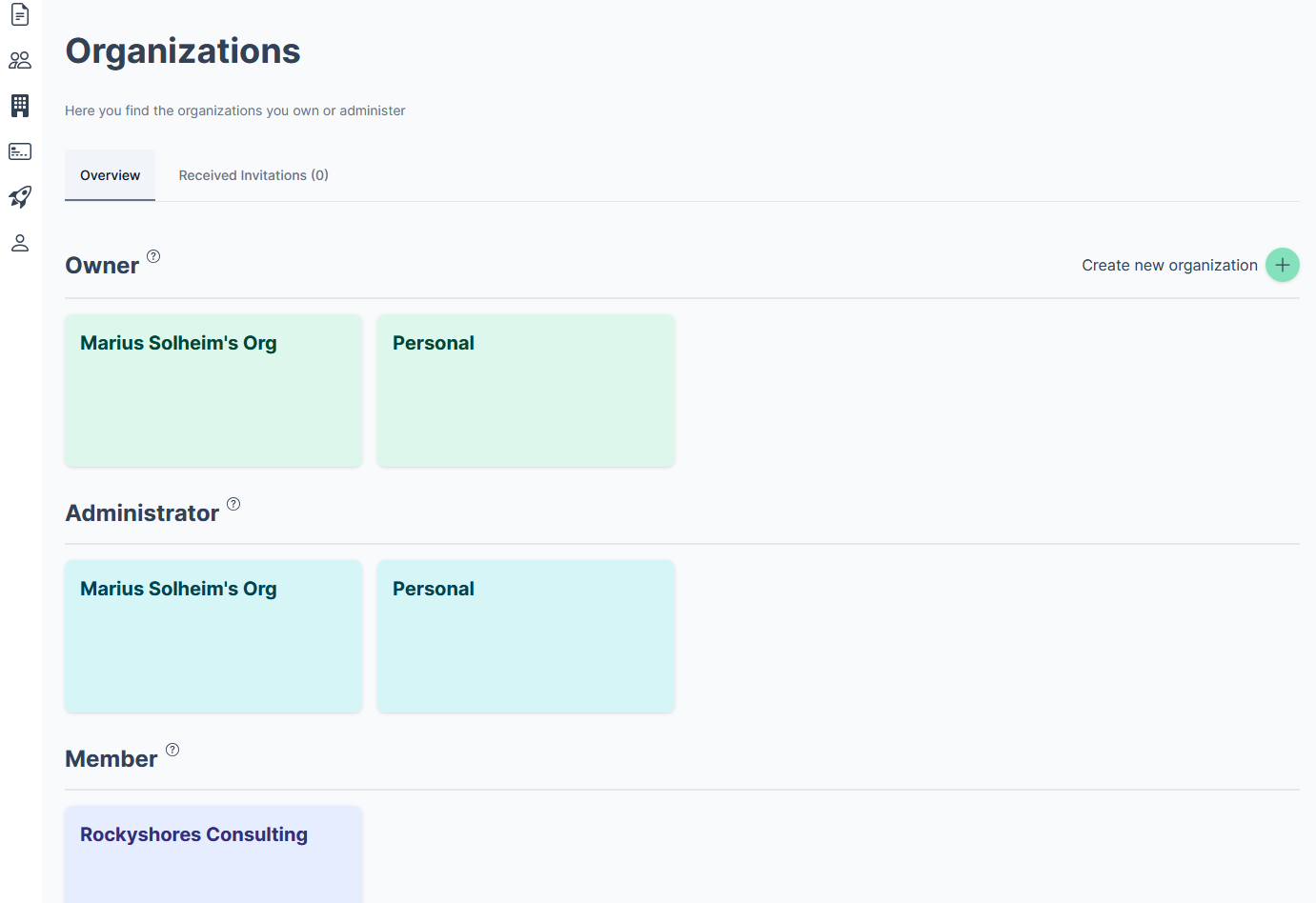 Image: Templify user organization management
Organization access roles
As you might have noticed from the image, you can have three roles, namely owner, admin and member. These roles serve different purposes and are all related to which actions a user is permitted to perform directly at the organization level, such as billing, inviting new members, and also creating and deleting teams.
When a user creates a new organization, they automatically become the owner and the admin, but you can delegate the admin priviledge to whomever you want in your organization and remove the admin priviledge for yourself.
User teams
- Status: WIP
- CRUD: Alomst done on all levels
A user who has an organization can create a team, which serves as a logical container for the templates. If you have an HR department and a development department, it makes sense to keep the templates for these teams separated. It also enables you to choose who in your organization has access to which teams, which makes a lot of sense from the business and separation of duties points of view.
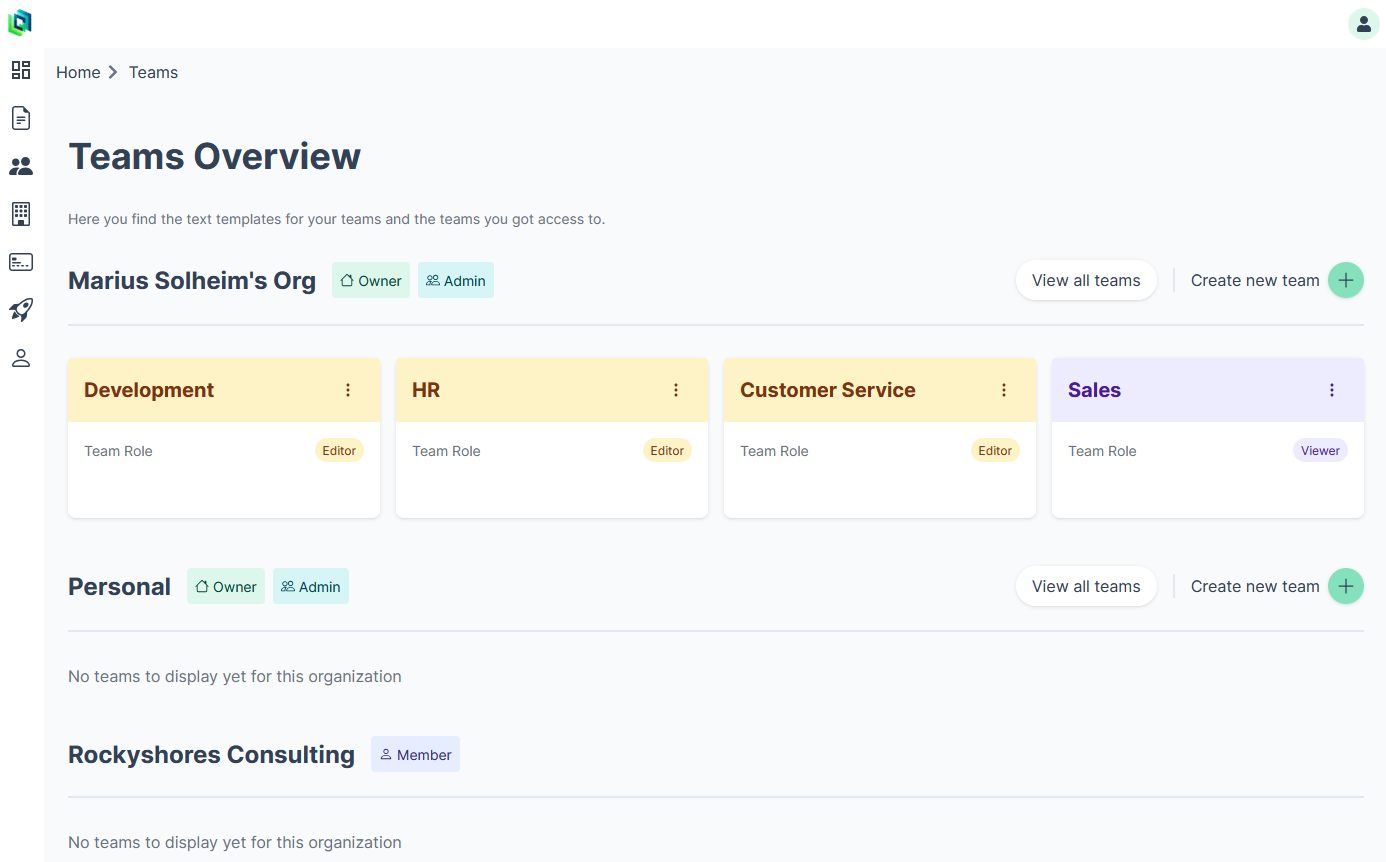 Image: Templify team management
Looking at the image above, you can see that the teams are sorted by which organization they belong to, with the organizations you own or administer always being on top, and then alphabetically sorted.
Team access roles
You might also have noticed two more roles, the editor and viewer. These roles have to do with the modifications a user has permission to perform within a team, which includes managing the text templates and the team name.
One purpose of these access roles is to limit who can make changes to the text templates, but also to clean up the UI. If you don't need to make changes, you don't need all the extra buttons that come with it - so we can remove them. The result is a UI which is easier to use. There are no destructive actions that can be done or any prompts that will pop up by accident, which in turn means you can work faster as you don't need to think about the same amount of cursor precision. I actually use the viewer role for a team I use for work to test out the application.
Managing team users
Naturally, some users needs to be able to edit the team, which is a priviledge available for each role besides the viewer.
If a user is simply an organization member and just a team viewer, they have read-only access at all levels of the application for that organization.
In the image below you can see the team management component, where you can add new members of the organization to the team (not yet implemented), set their role, and also remove the user from that team.
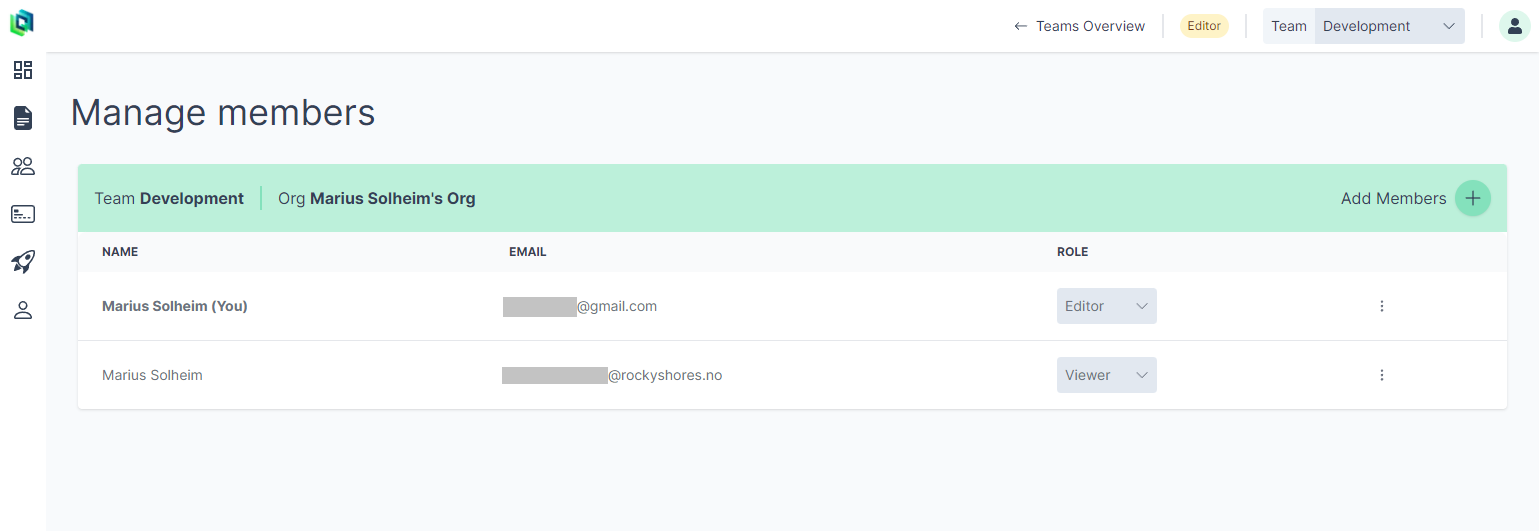 Image: Team user management
Data structures and caching
At the moment, the role switching works like a charm, which took a while to implement. As a little side note: it's hard to foresee the exact data structure for the data cache in React Context. I try to use server components as much as possible, but I need the data to be cached in React Context so I have it available for client components. Keeping the data valid and consistent has proven to be a challenge. For server components where the UI components display data from the database, I can just use the revalidatePath function, which re-renders the component on the server and sends it to the client, but for client components, sometimes it can be a bit more complex, especially if the data structure in Context is quite different from what I received from the database.
Sign up and user setup
The last thing, which I actually have been working on today, is the initial setup guide for new users. The idea is that new users should be guided with ease to where they create an organization and their first team. After creating an organization, the card design slightly changes to reflect the successfull completion of that step, as you can see below.
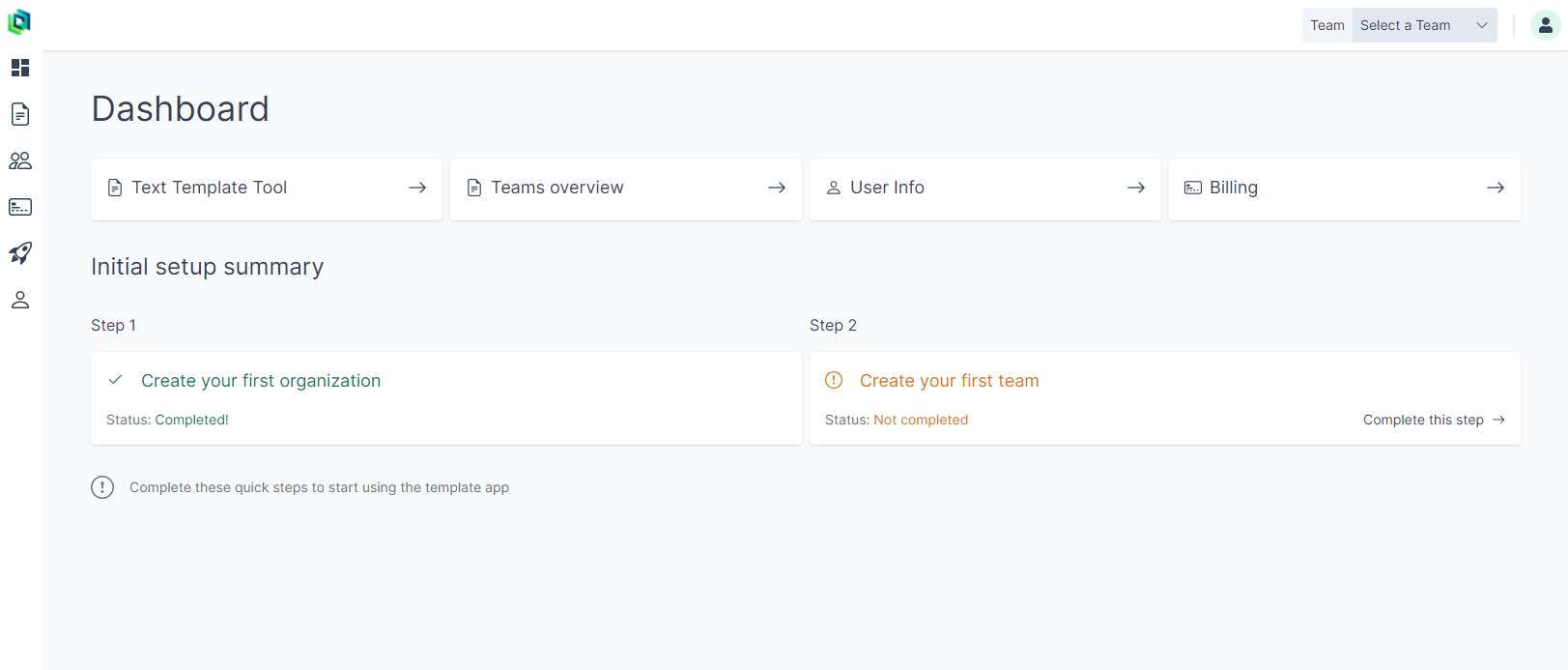 Image: Initial setup on dashboard
Getting the conditional statement for when this stepper should appear was a bit tricky as it should only show up if the user either has no organizations with no teams, but I don't want the setup prompt to appear if the user is part of another organization and is using the app through their teams - which assumes that they know well how the app is used and how to navigate it.
I originally thought to chain database commands on sign up, but if one command fails, you end up with data inconsistency and I'm not sure how to roll back database commits in Supabase. I didn't bother learning it either, as it would just be messy in cases where the sign-up process would be interrupted and data inconsistency would be an issue. I find the solution with a stepper beneficial from the UX point of view, as well as serving as a mini-tour of the application.
Server actions vs API routes
For my new job which I start in August, I was recommended to learn about server action. Before this post gets too long, which I think it already is, I want to say a quick thing about server actions: they're awesome!
With Supabase you can, in theory, expose the database key in the HTTP headers as they use PostGres with RLS, which stands for Row-Level Security. I am not too good at setting up RLS and really don't know what I am doing, so I don't feel comfortable with exposing the database credentials. I used the Next.js API routes until now, but the issue here is that these enpoints will be exposed to everyone, which means you have to secure them. The way I have secured them is by making an auth call to Supabase to valide the user on the server. This leads to a lot of auth calls to Supabase, I mean... A LOT.
Server actions don't expose any enpoints, which is huge for me! I could write more about my discoveries using server actions, but this will do, for now.
Conclusion
If you got this far, thank you so much for reading. There is a lot more to do with Templify, but it's nearing (slowly) a product which I would be comfortable revealing to the world.